Getting started
At a glance
- You don't type in a URL — you arrive via a link that already identifies who you are.
- That link determines your operator (your organization) automatically.
- The first thing you'll do is walk through a short setup wizard: domain → template → file → plugins.
How you get here
You don't navigate to MorphMapper by typing an address and logging in. You arrive through a link that already carries your identity with it. That link tells MorphMapper who you are and which organization ("operator") your work belongs to. If the link is missing or has expired, you'll see an error instead of the app. Go back to wherever you got the link from and open it again rather than trying to work around it. See Troubleshooting if the error message doesn't make it obvious what's wrong.
Once the link loads, MorphMapper looks up your operator automatically. You won't be asked to select an organization — it's already decided by the link you followed.
What happens next: the setup wizard
Every time you start working on a template, you go through a short, guided setup before you reach the actual editing screen. It has four stages:
Choose a domain — pick the business area you're working in (for example, one operator might have domains like Intermodal or Retail; the exact list depends on your organization). If your operator only has one domain, it's chosen automatically and you won't see this screen at all.
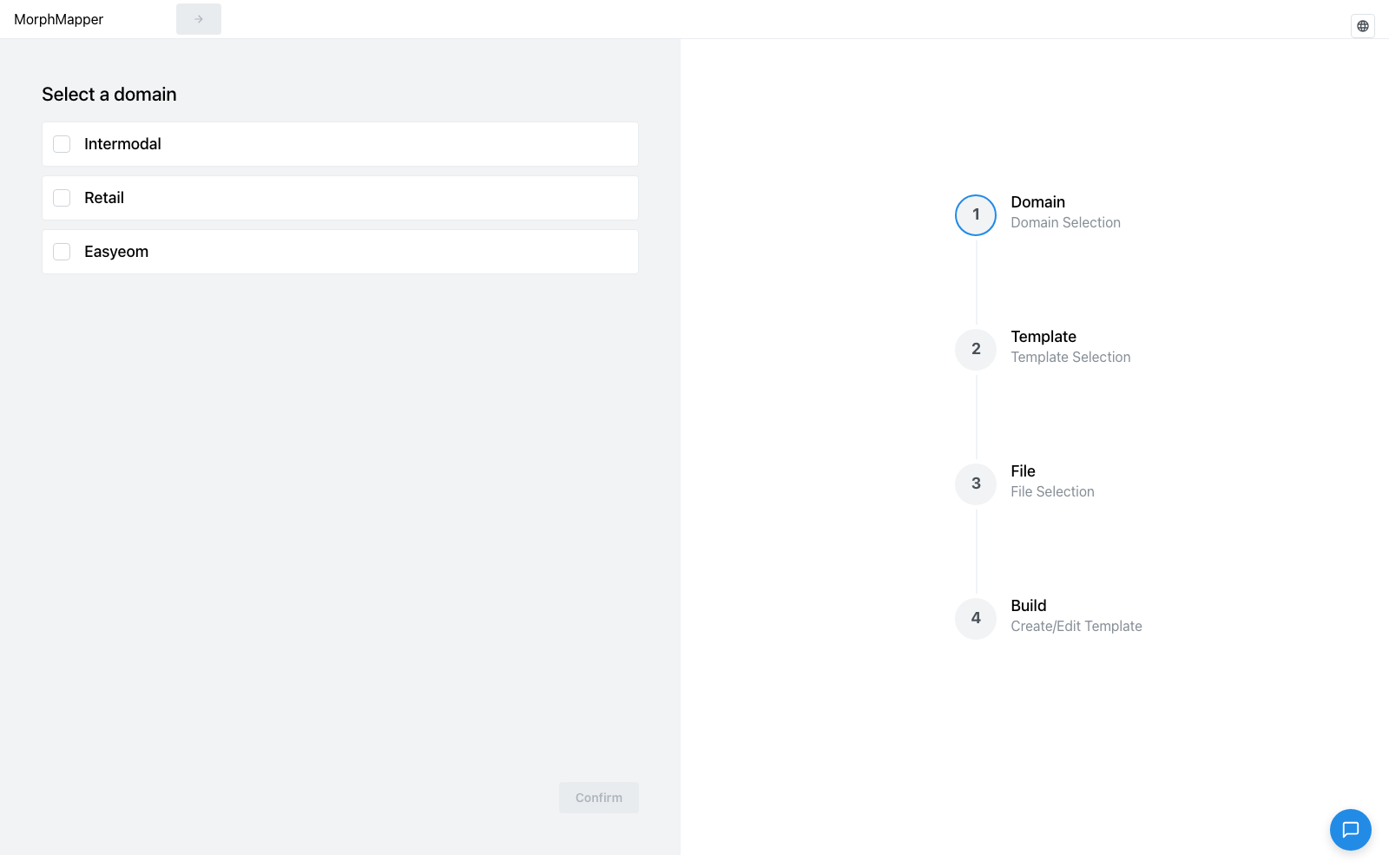
Choose a template — pick an existing template to continue working on, or create a new one.
Upload your file — the source document you want to build a mapping from.
Configure plugins, then let it process — turn on whichever plugins you want active for this template, then MorphMapper analyzes your file automatically.
See Choosing a domain and template and Uploading a file and configuring plugins for the details of each stage. Once setup finishes, you land in the workspace — the main screen where you build and refine your mapping.
Language
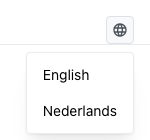
MorphMapper follows your operator's configured language automatically. If you want to switch it yourself, there's a language switcher (a globe icon) in the top-right corner of the setup screens.