Uploading a file and configuring plugins
At a glance
- Upload one file, or several — several lets MorphMapper build a mapping that generalizes across all of them, not just the first.
- Recently used files are saved per template — reopen, download, or delete them without re-uploading.
- Plugin settings here are the same plugins covered in Working with plugins — this is where you turn them on or off before processing starts.
- The last step isn't something you configure — it's MorphMapper processing your file automatically. You watch, you don't act.
Uploading your file
Drag your source file onto the drop area, or use it to browse for one. Which file types are accepted depends on the template's variant, chosen when the template was created (PDF, table, XML, text, email, or JSON).
You can add more than one file here. When you continue past this step with multiple files selected, MorphMapper processes all of them and tries to build a mapping that works across every one, not just the first file it sees. Use this when you have several example documents and want the resulting template to hold up across all of them, not overfit to a single example.
Selected files
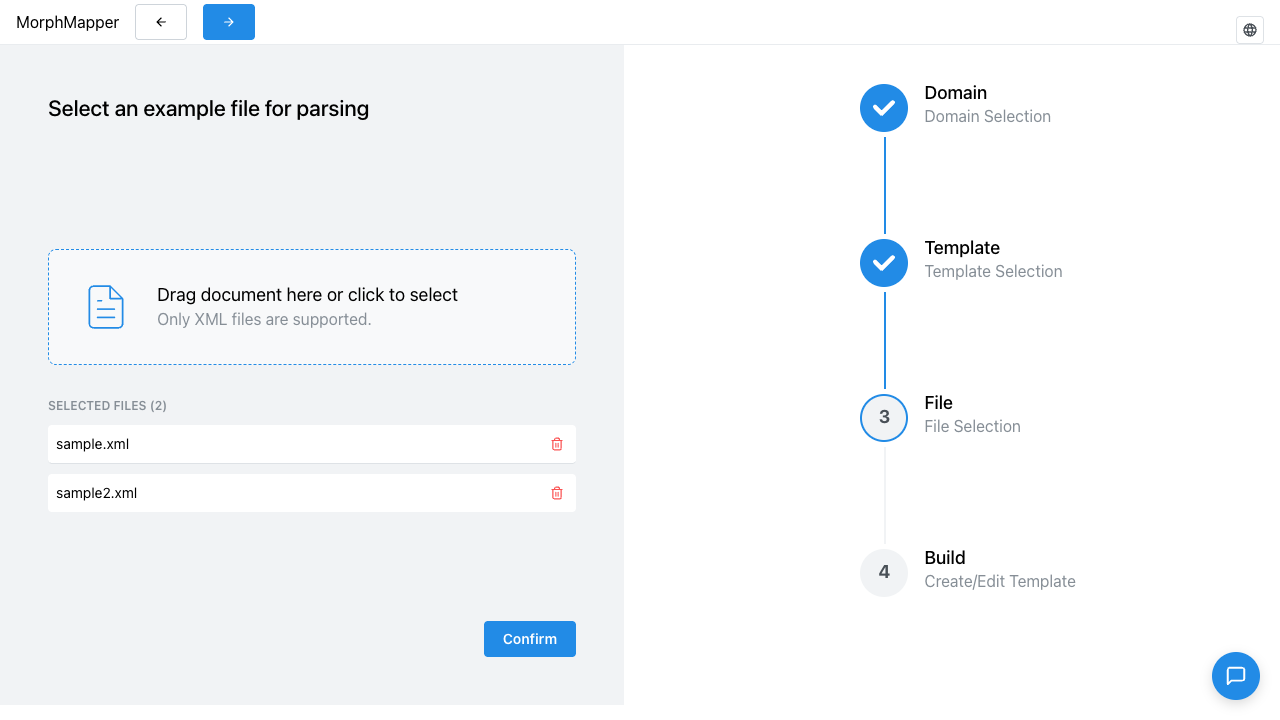
Once you've picked at least one file, a Selected Files list appears below the drop zone (still there, so you can drop or browse for more), titled with a live count — "Selected Files (2)" for two files. Each row names the file and has its own Remove file button. This list replaces the Recent Files list below while it has anything in it (see the next section). Picking files doesn't discard what Recent Files was showing; it just takes over that space until you remove every selected file again.
Removing a file only drops it from this selection — it doesn't clear Recent Files or unselect anything else you'd picked. Removing the last remaining file empties the selection back out, and Recent Files (if this template has any) reappears in its place.
Worked example: selecting sample.xml and a second file together shows "Selected Files (2)" with both file names listed, and Confirm enables. Clicking the second file's Remove button drops the count to "Selected Files (1)" with only sample.xml left, and Confirm stays enabled — the step only blocks you when the list is empty, not based on how many files remain.
The file parsed and shown in the file view is the first one in the list, in the order you selected them (or the order your OS reports them in a multi-select dialog). The others are held alongside it for the "generalize across every file" processing described above, not previewed themselves.
Recent files
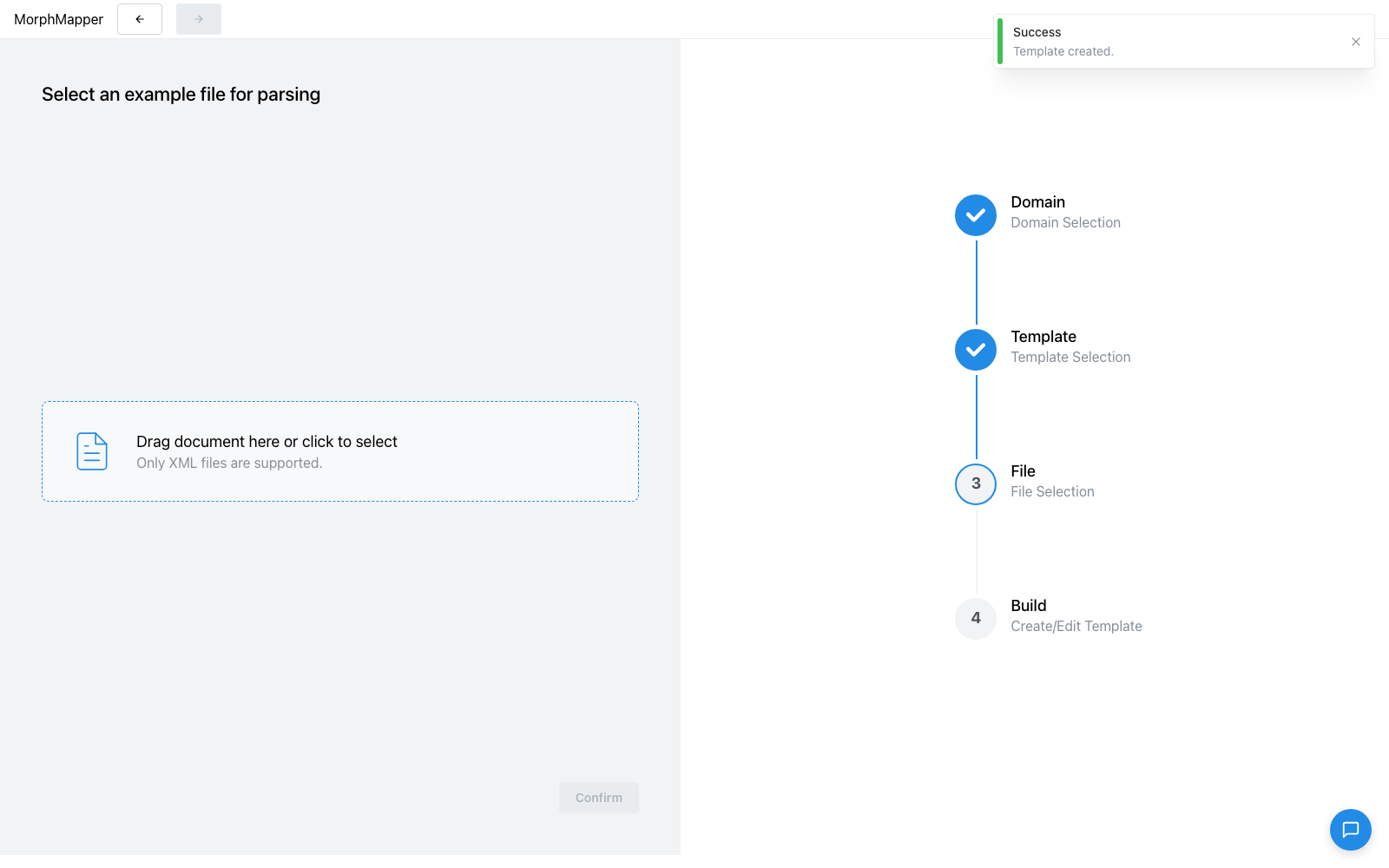
If you've uploaded files for this template before, they're listed here instead of an empty drop zone. Each one shows who last used it and when. Click one to load it again, or use the download/delete icons next to it without loading it first.
You can't continue to the next step until at least one file is selected.
Configuring plugins
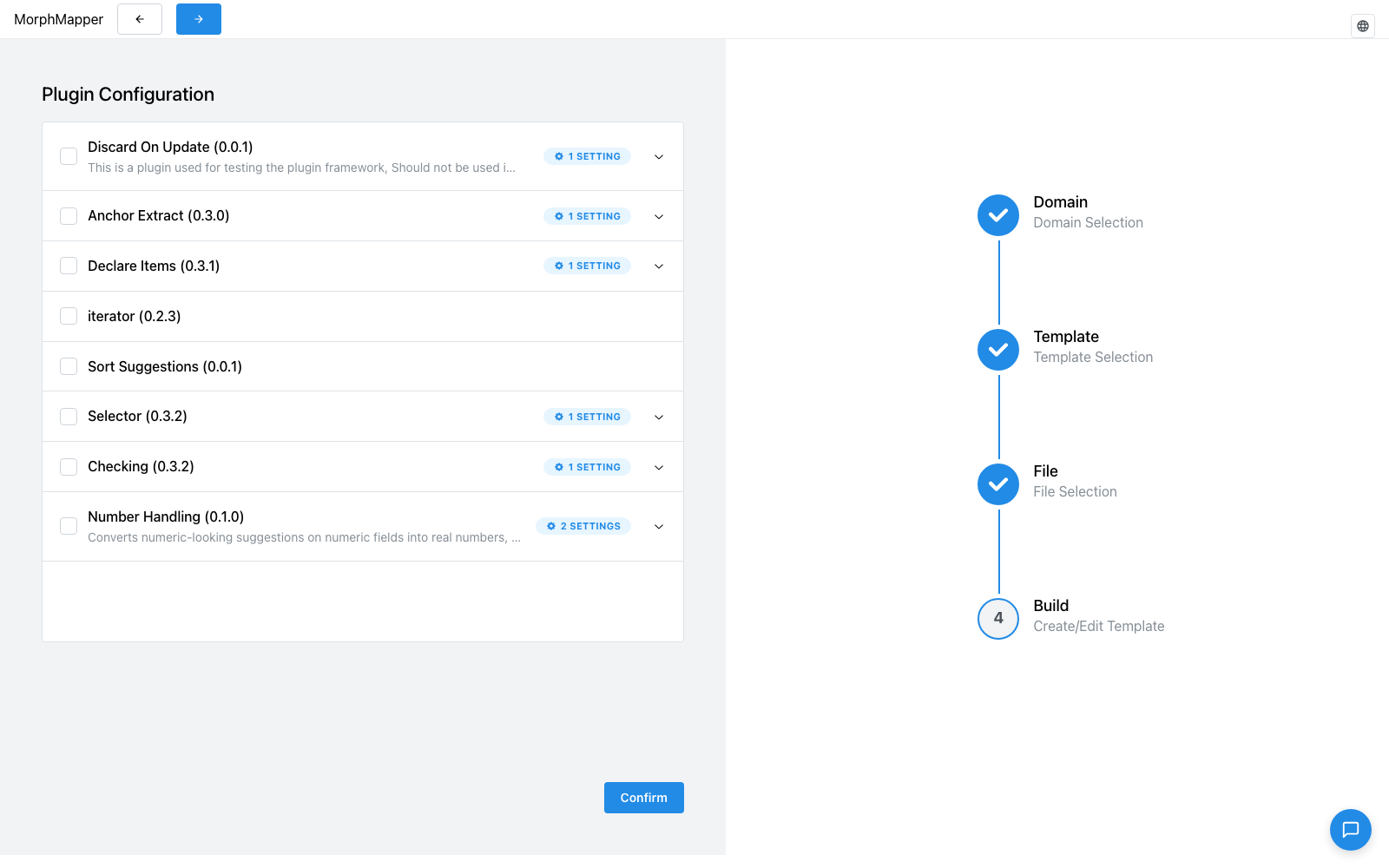
Next you'll see the list of available plugins, each with a toggle to turn it on or off for this session, and — for plugins that have them — their own settings underneath. Turning a plugin on means it will actively try to help while you build your mapping (suggesting values, detecting repeating data, and similar); see Working with plugins for what each one actually does. You can revisit these settings later, so this isn't a one-time, unchangeable choice.
Letting it process
The final stage of setup isn't something you fill in — it's MorphMapper reading your file (or files) and running the plugins you just enabled against them, automatically. You'll see a progress bar per active plugin, each labeled with its current phase, and a scrolling log below it. If you uploaded multiple files, you'll see it work through them one at a time.
This can take anywhere from a few seconds to noticeably longer, depending on which plugins are active and how much they have to analyze — the progress bars and log messages are there so you're not staring at a blank screen while it works. When it finishes, you're taken straight into the workspace.
Reading a plugin's progress bar
Each active plugin gets its own row, labeled with the plugin's name and a phase name that updates as its percentage climbs:
| Percentage | Phase label |
|---|---|
| 0–19 | Initializing |
| 20–59 | Extracting |
| 60–63 | Scoring |
| 64–75 | Retrying |
| 76–84 | Merging |
| 85–100 | Done |
The bar changes color with progress: blue below 60%, teal from 60–84%, green at 85% and above (matching the Done label threshold). It's striped while in the Extracting or Retrying phase — the two phases where a plugin is waiting on work rather than steadily progressing. Once a plugin's own extraction work reaches 85% ("Done"), its bar stops animating and its phase label turns green, even though the overall pipeline may still be running the remaining plugins or merging results up to 100%. If the plugin's progress update carries a message, it's shown as a small line of text under that plugin's bar.
If a plugin sits in the Extracting or Retrying phase for 3 seconds or more, an elapsed-time counter (Ns) appears next to its percentage so a long-running plugin doesn't look stalled. When a plugin's own bar reaches 100%, it briefly flashes (a half-second brightness pulse) rather than just stopping.
What happens after extraction finishes
Once every active plugin's own extraction work reaches 85%, MorphMapper doesn't jump straight to 100%. It runs a fixed sequence of follow-up steps instead, each one advancing every plugin's bar to a new floor and updating its message, on whichever plugin row is lowest at that point:
- 87% — "Applying results..." — the plugins' findings are merged into your template's entries.
- 92% — "Pre-rendering template..." — the template is rendered once internally to catch problems before you see it.
- 96% — "Setting up defaults..." — only for a table-based (Xls/csv) template: MorphMapper reads the file's first cell to set a default starting point for the table iterator, if you haven't already set one yourself (a saved value here is never overwritten).
- 97–99% — "Generalizing across files: N/Total", only when you selected more than one file — each additional file (beyond the first, which drove the extraction above) is parsed and folded into the same template in turn, one step per file. A toast, "Generalizing template across N files...", stays open for the whole multi-file portion and is replaced by a "Template generalized across N files" success toast once it's done.
- 100% — "Done" — every bar is driven to full and given about 700ms for its fill animation to visually catch up before you're moved on to Configuring a schema or Working with entries, whichever applies to your template.
This step sequence advances a plugin's bar only forward, never backward — if one plugin's own extraction genuinely finished slower and reported a lower percentage than another, this shared sequence still only pushes it up to each new floor, never past what its own reported value would justify skipping ahead of.
Reading the log
Below the progress bars, a scrolling log lists messages as plugins emit them, each row showing a colored type badge, the message text, and which plugin sent it. The badge color follows the message's type: red for Error, orange for Warning, cyan for Info, and green for Success.