Selecting values from the source file
At a glance
- Select something in the file view on the left, then click the clipboard icon in a field on the right to capture it.
- For PDFs, spreadsheets, text, and email, select by dragging over text like you normally would.
- For XML and JSON, click directly on a tag, attribute, value, or key instead — switch to "Reference" mode first.
- A second clipboard icon adds to a list rather than replacing a single value.
Wherever a field in the entries list or the graph editor needs a value from your source document, you'll see a clipboard icon next to it. That's how you turn something you can see in the file view — on the left side of the workspace — into a value in that field, without typing it by hand.
The two ways to select
Which way you select depends on your file's type:
- PDF, table, text, and email files — select the way you would in any document: click and drag over the text you want.
- XML and JSON files — click directly on what you want: a tag, an attribute, a value, or (in JSON) a key. Before you can do this, switch the file view into Reference mode using the button above it — it's off by default for these two file types.
For XML and JSON, a small breadcrumb trail appears at the bottom of the file view once you've clicked something — each pill is one step of the path you just built (for example Order / Customer / Name), so you can see at a glance what you actually selected without reading the raw reference string.
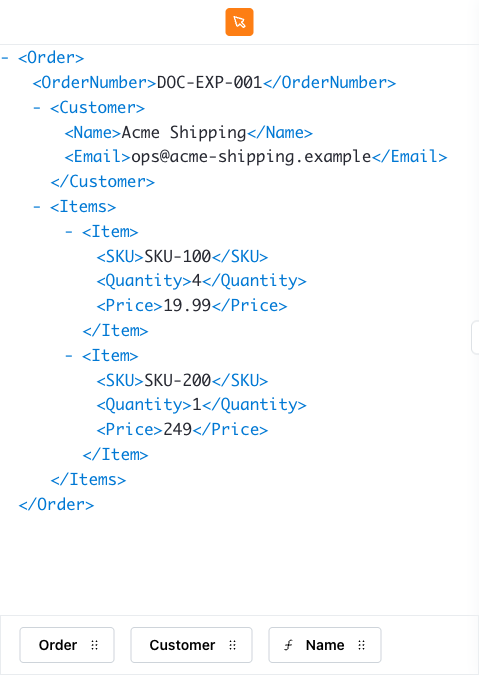
See Working with different file types for the specifics of each one — table cell selection, PDF/text highlight accuracy, and how XML and JSON's click targets differ.
Capturing the selection
Once you've selected something, click the clipboard icon on the field you want to fill. It grabs whatever's currently selected and writes it in — you don't need to hold the selection or drag it anywhere.
A couple of fields have a second icon next to the plain clipboard one — a cell-specific one for spreadsheet fields, so you can capture a whole cell reference rather than just its text. The two icons work independently of each other: whichever one you click captures the current selection in that icon's own form (cell location, or cell text), regardless of what you actually dragged over. Fields that hold a list of values show a "plus" version of the clipboard icon once the list isn't empty anymore — clicking it adds another value to the list instead of replacing what's already there. That "plus" capture doesn't check whether anything is actually selected first: clicking it with no active selection still adds an entry to the list, just an empty one.
Editing a captured reference (XML/JSON)
Each breadcrumb pill is also a menu, not just a readout: click one (not just hover) to open Delete and Configure. Delete removes that step and everything after it from the path. Configure opens an "Edit reference" dialog with:
| Field | Description |
|---|---|
| Current reference | The tag/key name at that step: a disabled text field while the reference type is a plain selector, or an editable field with a trailing @ badge once you switch to an operator (see below). |
| Select type of reference | A dropdown split into two groups (see below). |
Select type of reference groups:
- Selectors — Base (the plain tag/key reference; what a normal click already selects) and Array (address the whole repeating array at that step, not one instance of it).
- Operators — Value (append a
.@operator to the path so it resolves to the tag/key's own value, not the element/key itself) and Array (append the operator form of the array selector). For XML only, a third operator, Attribute, is also offered — but only when the selected tag actually has attributes in the source file (it doesn't appear at all for a tag with none). Choosing it reveals a Select attribute dropdown listing that tag's attribute names; picking one sets Current reference to an editable path ending in the chosen attribute's name. None of the sample file's tags carry attributes, so this can't be demoed againstsample.xml— confirmed against source instead (packages/file-viewer's XML modal code). - The Operators group only appears at all for the last step of a breadcrumb path — configuring an earlier pill that already has further steps chained after it in the path offers only the Selectors group, since an operator there would conflict with what comes next.
- JSON's dialog never offers an Operators group at all — only Base and Array selectors, confirmed against source (
packages/file-viewer/src/config/operators.tsdefines Value, Attribute, and Array for XML, and nothing for JSON). There is no JSON equivalent of XML's.@Value operator or Attribute operator — a JSON reference always addresses the key/value pair itself.
Worked example: clicking the first <SKU> tag in the sample XML's repeating <Item> block with Reference mode on builds the breadcrumb trail Order / Items / Item / SKU, using Base selectors by default. Clicking that breadcrumb's SKU pill and opening Configure confirms Select type of reference starts on Base. Switching it to Value turns Current reference into editable text with a trailing @ badge; capturing the selection into the Anchor's Selector with the clipboard icon after that produces $inputdocument.Order.Items.Item.0.SKU.@.@, and the node's Output resolves to SKU-100. The final .@ in that path is exactly what switching to the Value operator added — it's what turns a path that addresses the <SKU> element itself into one that reads the element's text out.

Clearing a captured value
Once a text-selector or cell-selector field holds a value, a second small icon appears next to the clipboard one — a Reset icon that clears the field back to empty (and, for a graph node, flips its status back to Failed to evaluate if the field was required). It only appears once there's something to clear; a still-empty field shows just the clipboard icon.
Reusing a selection elsewhere
If you've already anchored a value somewhere in the template, other fields nearby may offer to build their own value relative to that one, instead of always pointing back to the start of the document. When that's available, you'll see a toggle for it near the field — switch it on to pick from the reusable anchors on offer rather than selecting fresh from the file each time.