Using code mode
At a glance
- Code mode is a direct text editor for an entry's value — no nodes, no canvas.
- The footer always shows the live output of what you've typed.
- Reach for it when the graph editor is more structure than you need, or when you want to write the logic directly.
Any entry set to the Code type in Working with entries opens in a plain text editor instead of the graph editor. It's the more direct option — you write the entry's value yourself, rather than assembling it from connected nodes.
When to use it
Reach for code mode when a value is simple enough that building a whole node graph for it feels like overkill, or when you already know exactly what you want to write and would rather type it directly than click through the equivalent nodes.
What you'll see
A code editor takes up the main area, with the entry's name shown at the top — click the back arrow next to it to leave and return to where you were. As you type, the bar at the bottom keeps a live preview of what your current code actually produces, so you can see the result without leaving the screen.
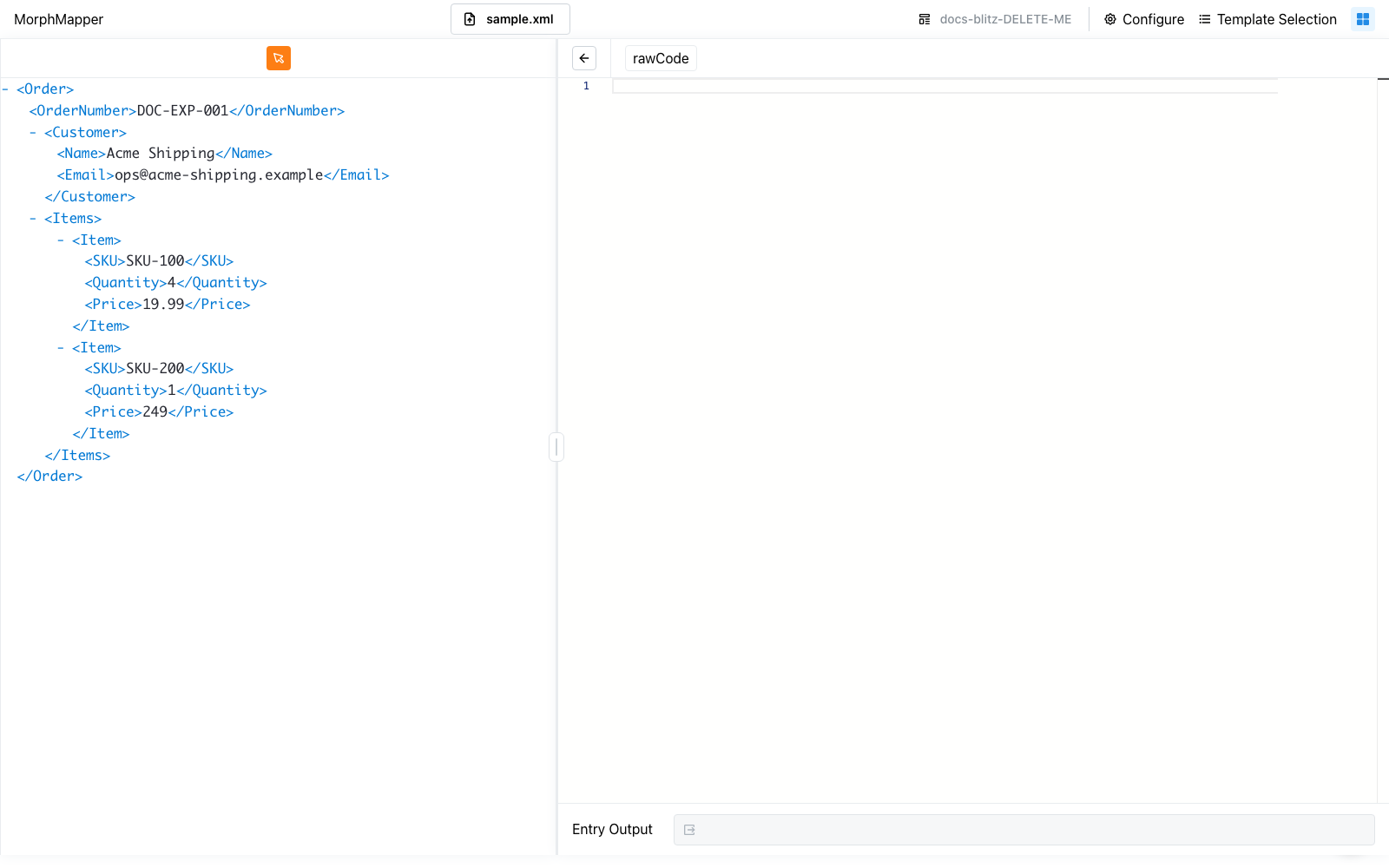
What the editor actually edits
The editor is a Monaco instance (the same editor that powers VS Code) set to JSON language mode. What you type isn't a scripting language of its own — it's the same JSON structure that the graph editor's nodes serialize to internally, edited directly as text. Building a graph out of connected nodes and typing the equivalent JSON in code mode produce the same result; code mode just skips the node-by-node assembly.
The editor opens pre-filled with the entry's current value serialized as indented JSON (JSON.stringify with a tab indent), so switching an existing entry to Code mode gives you a starting point rather than a blank editor.
How your typing is applied
What you type is only applied to the entry once it parses as valid JSON: every keystroke is checked with JSON.parse, and only a successful parse is written back to the entry (debounced by 500ms after you stop typing). While your text is invalid JSON — a trailing comma, an unclosed brace, a half-typed value — the edit is silently not applied yet; the entry keeps its last valid value and the footer keeps showing that value's output until the JSON becomes valid again. There's no inline error marker for this — the only sign that your latest keystrokes haven't taken effect is that the footer's output doesn't change.
Worked example
Switching an entry (for example the Email domain variable in Declaring variables with context) to Code type via its "..." menu opens it in code mode with an empty editor — the entry had no prior value. Typing "acme" (a JSON string literal, quotes included) updates the footer's Entry Output field to acme about half a second after you stop typing. Deleting the closing quote — leaving "acme, which doesn't parse — leaves the footer showing the last valid output, acme, unchanged; nothing marks the text as broken until you fix the quote and the footer updates again.
The footer field
The footer's output field is labeled Entry Output and is always disabled — you can't type into it directly. It only ever reflects the current entry's computed value; it's a read-only readout, not a second input.