Working with different file types
At a glance
- Every file type shows in the same left-hand panel, but how you select from it differs by type.
- PDF, table, text, and email: drag-select like a normal document.
- XML and JSON: click directly on the structure — switch to Reference mode first.
- Highlights (showing where a value came from) work differently underneath for each type, though they look the same to you.
The file view on the left of the workspace adapts to whatever file type your template is built for. The core mechanics — selecting a value — stay the same across all of them, but each type has its own quirks.
PDF
Shown page by page, with page navigation above it. Select text by dragging over it, same as reading any PDF. If the same text appears more than once on a page, MorphMapper is careful to highlight the specific occurrence you actually selected, not every match — so highlighting stays accurate even on a page with repeated values.
Table (spreadsheet / CSV)
Shown as a grid, not selectable text — click a cell to select it rather than dragging. Columns are headed A, B, C, ... (plain spreadsheet letters), not your file's own header row — a CSV's first line renders as an ordinary data row like any other, since the grid doesn't treat it as column names. Confirmed live against sample.csv: its OrderNumber, CustomerName, CustomerEmail, SKU, Quantity, Price header shows up as row one under columns A–F, not as the grid's column headings.
Numbers that look like dates are converted for display: a whole number greater than 60 is shown as a MM-DD-YYYY date if treating it as an Excel date serial number lands between 2010 and 2030, and a value strictly between 0 and 1 is shown as an HH:MM time. Otherwise the number is shown as typed. This conversion is display-only and doesn't change what gets captured when you select the cell.
A second heuristic matches the column's letter name (A, B, AA, ...) against words like "date", "time", "amount", or "id" — but this never actually fires, since a spreadsheet-letter column name can't contain those words. Which column a value sits in has no effect on whether it's shown as a date; only the value itself and the 2010–2030 range check above decide.
XML
Shown as an interactive tree of tags, attributes, and values — this is one of the two file types where you click to select rather than drag. Switch to Reference mode first (a button above the file view), then click directly on the tag, attribute, or value you want. Clicking a tag captures that whole element; clicking an attribute captures just that attribute's value; clicking text between tags captures that value alone.
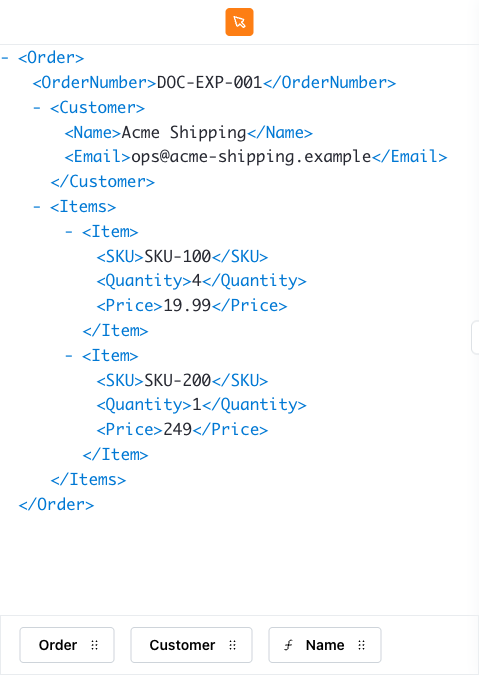
The breadcrumb trail's pill count tracks how deep the click landed: selecting a leaf value like <Email> produces one pill per ancestor tag down to that element (Order / Customer / Email for sample.xml's Order > Customer > Email), while selecting a parent element itself, such as <Order>, produces just that one pill — the trail always ends at whatever you actually clicked, not at the deepest node in the document.
Text
Plain text, paginated into fixed-size pages. Select by dragging, the same as PDF. Highlights carry across page boundaries correctly — a value highlighted on one page is tracked by its position in the whole document, not just that page.
Email
Shown as the email would actually render (or as plain text, if it has no HTML body) — select by dragging, same as any document. Email attachments aren't part of the file view; only the message content itself is shown.
JSON
Shown as an expandable tree, like XML the other click-to-select file type. Switch to Reference mode, then click a key or a value's row to select it. Clicking into an array captures your position within it, so array items are addressed correctly even when several look identical.