Working with entries
At a glance
- Entries are the fields of your output — one row per field, in a table: Field, Value, Actions.
- Simple, boolean, and cell entries edit inline; graph and code entries open their own editor.
- The "..." menu on a row can change its type, copy/paste it into another template, or clear its value.
- The suggestions button next to Edit asks any active AI plugin for a suggested value.
You land here after setup. It lists every field ("entry") in your template as a row in a table: Field (its name), Value (what it currently maps to), and Actions.
Adding an entry
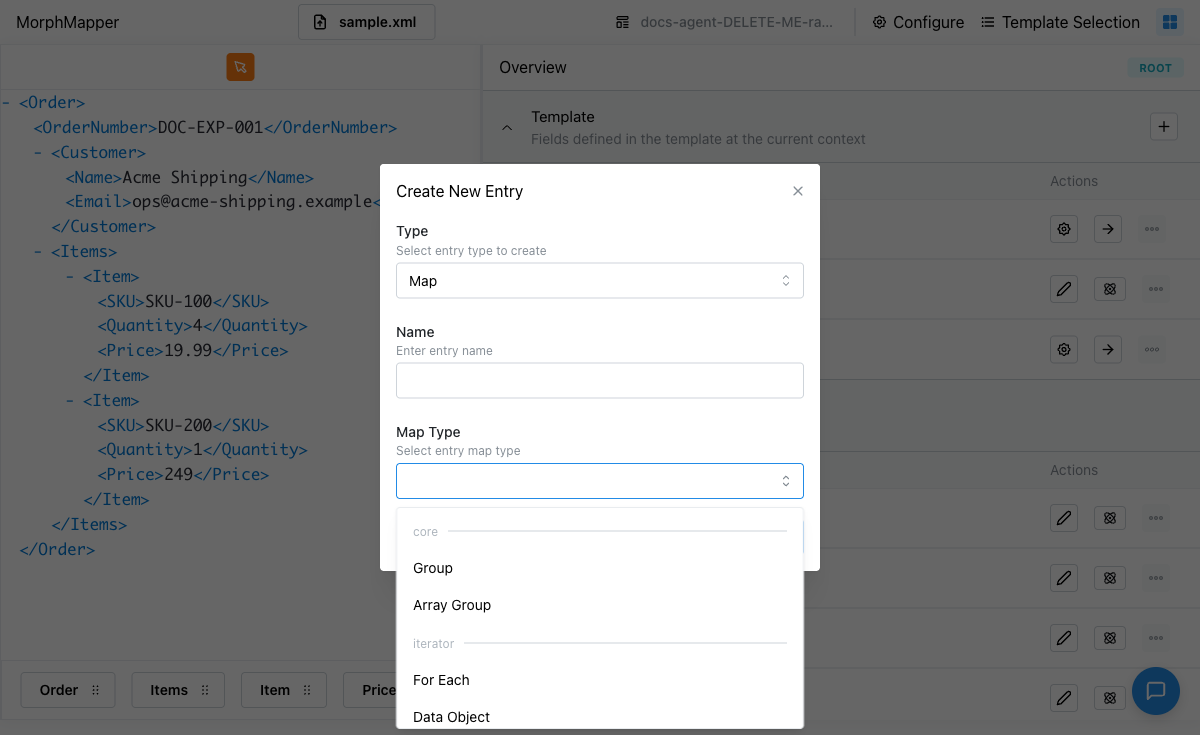
Click + above the list to add a new one. You'll choose:
Type — what kind of value this field holds: a plain value, a boolean, a spreadsheet cell reference, a value built from a node graph, raw code, or a group that contains other entries.
Name — what it's called.
If you chose the grouping type, also Map Type — how its children combine. The picker is grouped: under "core," Group (a single object) or Array Group (a repeating array) — pick based on whether this field should hold one thing or a list of things. A second group, "iterator," offers For Each and Data Object as well, for entries built around an iterator (see Declaring variables with context).
Editing an entry
What clicking Edit on a row does depends on its type:
- Plain, boolean, and cell entries edit right there in the row — the row switches into an editable state with confirm/cancel actions in place of the usual ones.
- Graph entries open in the graph editor — see that page for building the actual mapping.
- Code entries open in code mode.
| Simple | Boolean | Cell |
|---|---|---|
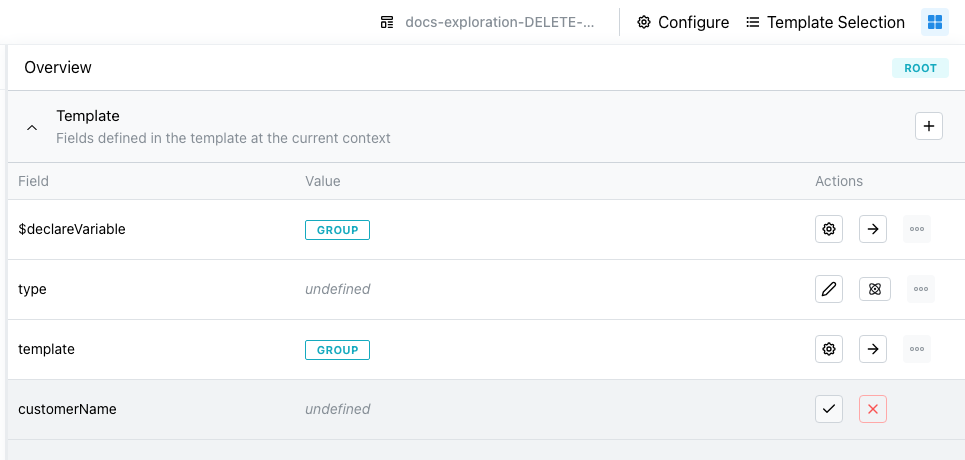 | 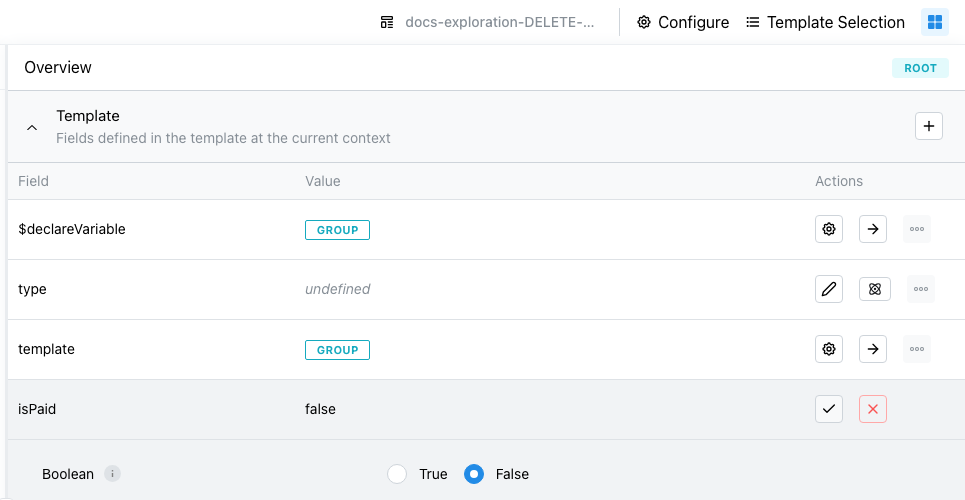 | 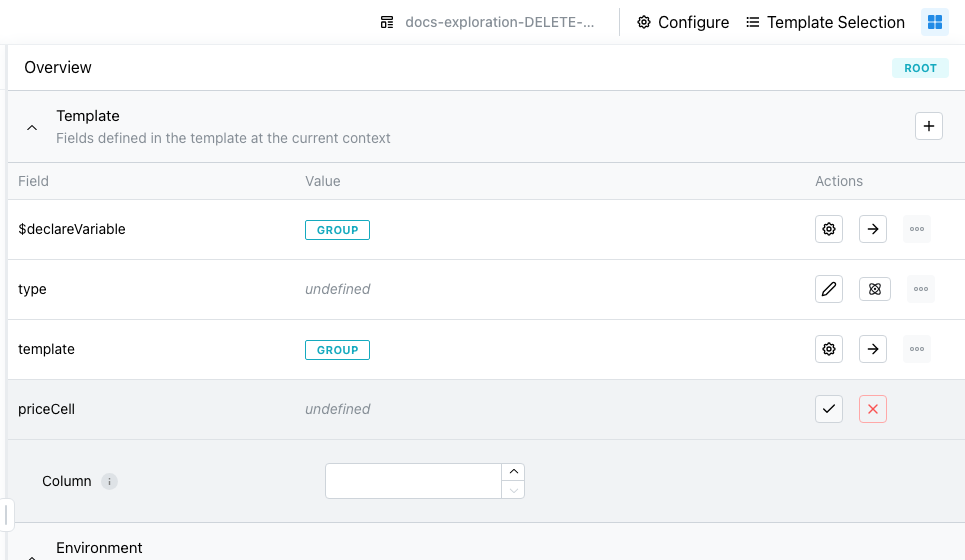 |
Next to Edit is a suggestions button — click it to ask MorphMapper's active plugins for a suggested value for that field, drawn from your uploaded file. See Working with plugins for what's actually generating those suggestions.
Group entries look different in the list. Instead of an edit pencil, a group's row shows a settings icon and an arrow. The arrow drills into the group to show its own children, one level deeper in the same table. The settings icon opens that entry's Context view — the same Environment Variables / Iterators screen covered in Declaring variables with context.

The "..." menu
Every row also has a menu with a few more actions — a group row's version of it is cut down to just the first one below:

Change type — switch what kind of entry this is. You're only offered types that make sense for the entry: sometimes every type, sometimes a smaller set the schema restricts it to. The menu appears only when there's more than one valid choice. If the schema doesn't restrict a leaf entry's allowed types, the menu falls back to a fixed default order: Boolean, Simple, Cell, Graph, Code. A group entry gets a different version of this menu instead: a choice between Map (its normal structured children) and Code (replace the whole group with one block of raw code, edited the same way as code mode). Switching a group to Code removes its row's drill-in arrow, since nothing is nested to open anymore.

Copy / Paste — copy an entry (with its value) to your clipboard, and paste it into a row in this template or another one entirely, to reuse a field you've already set up. Copy only shows up once the entry holds a value; Paste is always offered.
Clear — remove the entry's current value without deleting the entry itself.
Grouped entries and context
The list is split into two sections: your actual template entries (above), and, separately, any variables you've declared for reuse — see Declaring variables with context. The variables section only becomes available once you've declared at least one.